![keydata-logo-fullcolor-4.png]](https://support.keydata.co/hs-fs/hubfs/keydata-logo-fullcolor-4.png?height=50&name=keydata-logo-fullcolor-4.png)
What are multi-unit properties?
A multi-unit property is one physical property that appears in your PMS as more than one listing. This happens when the same space can be rented in different configurations, or when several units are grouped under one listing.
Depending on your PMS, multi-unit properties usually show up in one of these ways:
- Parent/child listings: a parent listing (for example, a whole villa) linked to child listings (the separate apartments inside it).
- Categories or room types: a parent "category" that groups several identical units. Guests book the units, not the category.
- Combined listings: a separate listing that books two or more units together (A + B sold as AB).
- Duplicate listings: the same rental listed more than once, for example for different channels or stay rules.
Many PMSs manage these relationships themselves: a booking on one listing automatically blocks the related listings, and those blocks are sent to KeyData.
If the relationship is not managed in your PMS, or is not sent to KeyData, you can set it up directly in KeyData with two tools: Roll-ups and Lock-offs. The rest of this guide explains when to use each.
Roll-ups and Lock-offs? Which one do you need?
Answer three questions to find the right setup.
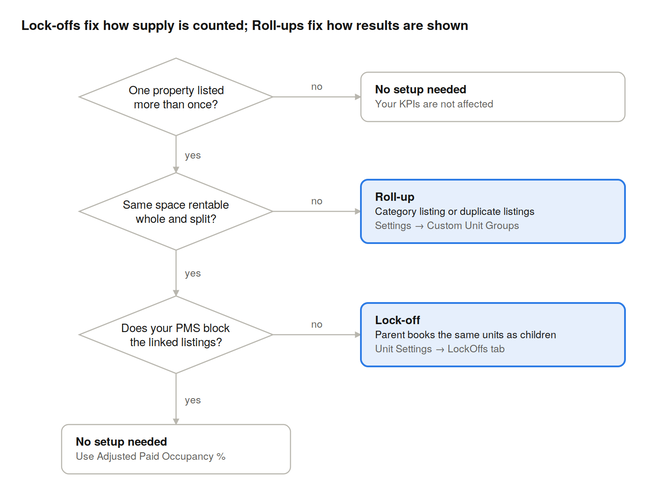
If the parent listing is just a container or a duplicate, use a Roll-up. If it is a real bookable combination of other units, use a Lock-off, unless your PMS already blocks the linked listings.
Roll-up vs. Lock-off at a glance
|
Roll-up |
Lock-off |
|
|---|---|---|
|
Problem it solves |
Performance of one property is split across several listings |
The same physical space is counted as extra supply |
|
What it changes |
How results are displayed: several listings become one reporting row |
How supply is counted: available nights are adjusted |
|
Where to set it up |
Settings → Custom Unit Groups (Rollup Parent toggle) |
Unit Settings → LockOffs tab |
|
Where it applies |
Leaderboards and views showing the group; switched off when you filter by a Custom Unit Group |
The whole account, including all portfolio KPIs |
|
Units still visible individually? |
Yes, by filtering on the Custom Unit Group |
Yes, units stay separate; only the counting changes |
|
Typical case |
A parent/category listing with no bookings of its own, or duplicate listings of one property |
A property rentable as a whole or split into separate units |
A Roll-up is a Custom Unit Group with the Rollup Parent option switched on. KeyData merges every unit in the group and shows them as one combined unit, under the parent you choose.
What gets combined
- Revenue and nights: total revenue, revenue per unit and nights sold are added up across all units in the group, including any bookings on the parent itself.
- Rate and occupancy KPIs: ADR, RevPAR, TRevPAR and Occupancy % are recalculated from the combined totals. For example, ADR = total group revenue ÷ total group nights. It is not an average of each unit's ADR, so it reflects the property's real performance.
- Unit count and available nights: summed, with controls that stop supply from being counted twice.
How it displays
- By default, children are collapsed into the parent, which appears as a single row with the combined data (for example in the Unit Leaderboard).
- When you filter a report by a Custom Unit Group, the Roll-up is switched off and each unit appears individually. This lets you still analyse units one by one.
How to set it up
- Go to Settings → Custom Unit Groups and create a new group (or open an existing one).
- Switch on the Rollup Parent toggle.
- Select the unit to treat as the Parent.
- Select the unit(s) to treat as the Children and save.
- Make sure the group and its units are active.
A Lock-off tells KeyData that a "parent" listing is not an extra unit, but a combination of real units that can also be booked separately. KeyData then adjusts available nights so the same physical space is never counted twice.
How KeyData counts it
Take units A and B, two real units, and AB, the listing that books both together.
|
Situation on a given night |
Units counted for occupancy |
|---|---|
|
No bookings |
2 (A and B) |
|
Booking on A, or on B |
2 |
|
Booking on AB |
1 |
Behind the scenes, a booking on the parent blocks its children, and a booking on a child blocks the parent. Because this logic runs across the whole account, your portfolio-level KPIs (Occupancy, RevPAR, Annual Snapshot) stay accurate without applying any filter.
How to set it up
- Go to Unit Settings → LockOffs tab.
- Click Add New.
- Pick the Parent (the combined listing, AB).
- Pick the Children (A and B) and click Submit.
Important: if your PMS already manages a parent/child relationship for these listings, do not also create a Lock-off in KeyData. The two would overlap and the calculations will be wrong. Check with your Partner Success Manager first.